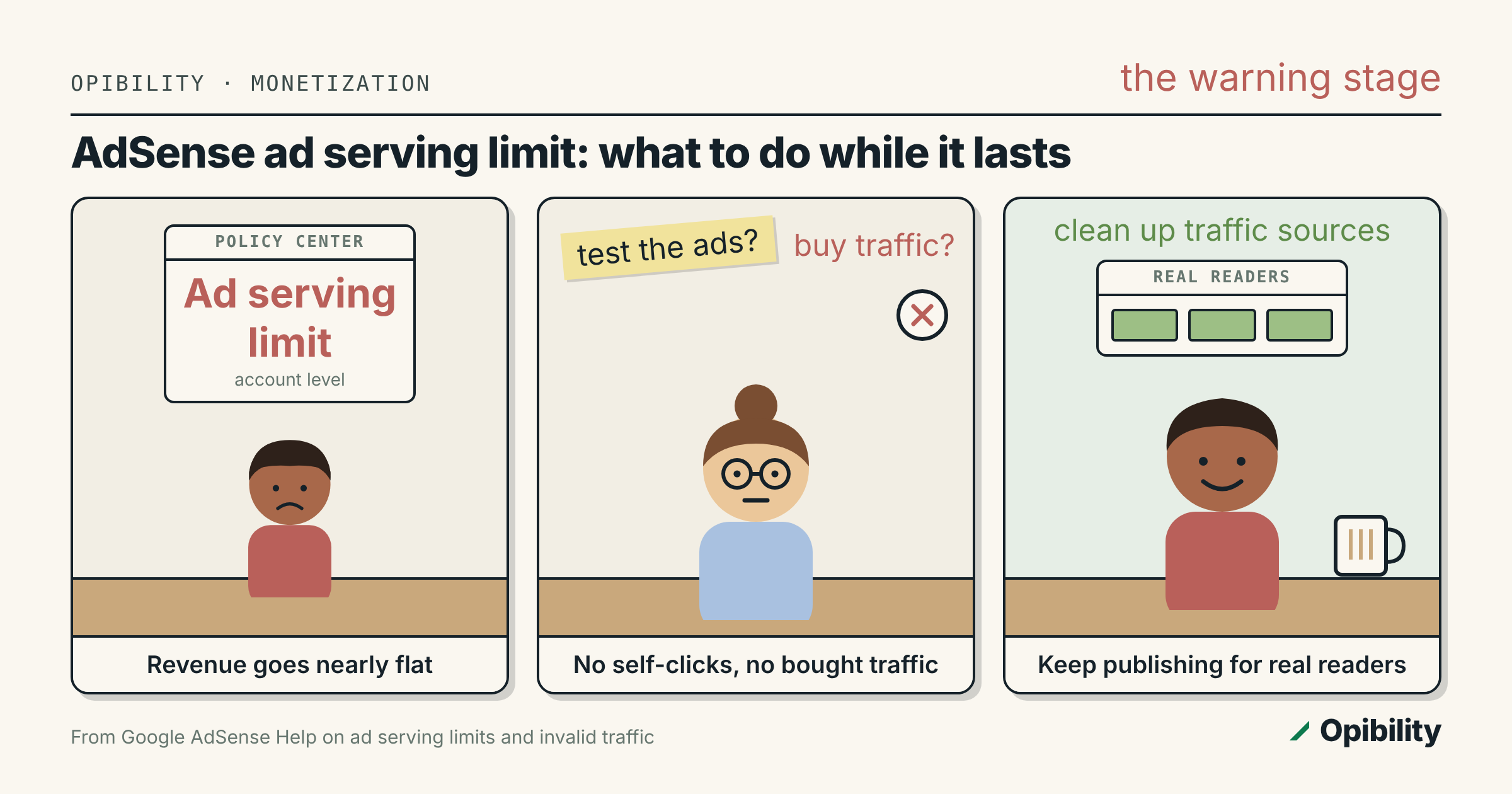
The pages still load, the ad units are still in the code, and the revenue line has gone nearly flat. Open AdSense and the Policy center says the account has an ad serving limit. It reads like a penalty, and the instinct is to do something: test the ads, push more traffic, change the layout. Most of those instincts make it worse. This post covers what Google says an ad serving limit is, how it differs from two similarly named things, and what is actually worth doing while it lasts.
What an ad serving limit is
Google's AdSense Help describes it plainly: Google may place a limit on the number of ads an account can show. Two reasons are given. It can be a temporary limit while Google gets to know the account and evaluates its traffic quality, which is common on new accounts and new sites, or it can follow concerns about invalid traffic.
Google says the limit typically affects publishers for less than 30 days, though it can last longer in some cases. It is reviewed automatically as Google keeps evaluating the traffic, and Google notes that if it detects issues after lifting a limit, or no longer has enough information to evaluate, the limit may come back. The account stays usable throughout: you can still sign in, read reports and see the details in the Policy center, which is where the account-level status lives.
Three things with nearly the same name
Search results mix these up, and the fixes are different:
- Ad serving limit (AdSense, account level). A cap on how many ads the account can show, for the traffic-quality reasons above. This post is about this one.
- Limited ads. A setting about data, not volume: Google's Help page on the two terms explains that limited ads turn off the collection, sharing and use of personal data for ad personalization. It changes what kind of ads can serve, not whether your account is capped.
- Limited ad serving (Google Ads). An advertiser-side policy in Google Ads with its own appeal form. It applies to advertisers buying ads, not to publishers showing them, so its appeal route does not help an AdSense account.
What counts as invalid traffic
Because the limit is about traffic quality, it helps to know what Google is filtering for. Its invalid traffic page lists examples including publishers clicking their own live ads, repeated clicks or impressions from one or more users, and automated clicking tools, robots or other deceptive software. Google also says a third party may generate invalid traffic on your ads without your knowledge, and that it is still ultimately the publisher's responsibility to make sure the traffic on its ads is valid. If Google sees high levels of invalid traffic, it may suspend or close the account.
That last point is why the limit deserves attention rather than panic. It is the warning stage, and how you behave during it is part of what is being evaluated.
What not to do while it lasts
Do not click your ads to see whether they work. Google is explicit that publishers must not click ads on their own sites, even out of curiosity. To check where an ad leads, type its destination into the browser or use the Ad review center. Viewing your own pages is fine; reloading them over and over is not.
Do not buy traffic to make up the shortfall. Google's prevention guidance warns against services that generate clicks or impressions, naming paid-to-click, paid-to-surf, autosurf and click-exchange programs, and against traffic from sources you have not checked. Cheap traffic bought during a traffic-quality review is the clearest way to turn a temporary limit into something longer.
Do not ask anyone to click. Not friends, not colleagues, not a team testing a redesign. If people test the site, ask them to avoid live ads.
What to do instead
1. Read the Policy center. Confirm the issue is the account-level ad serving limit and not a site-level or page-level policy issue. Site-level enforcement is a different case: AdSense lets you request a review of a site after fixing the problem. The ad serving limits article describes the account-level limit as reviewed automatically, and the pages we read did not describe a form to request its removal.
2. Audit where the traffic comes from. Break your traffic reports into segments and look in your analytics for patterns that do not match real readers: sudden spikes from one country, one referrer or one page, or sessions that look automated. Google specifically notes that some publishers have had invalid traffic problems after partnering with low-quality ad networks, search engines or directory sites to increase traffic. If any traffic source is one you paid for or cannot explain, stop it.
3. Check the ad implementation. Google's guidance asks publishers to confirm their ad code follows program policies and has no programming errors, tested across browsers and devices, and not to place ads inside iframes, which makes it impossible to know where the ads are actually showing. It is also a good moment to confirm ads are not sitting on pages that should never carry them, which we covered in which pages should never carry AdSense ads.
4. Keep publishing for real readers. The limit is lifted as Google evaluates traffic, and the useful thing you control is the traffic it evaluates. Steady, honest content that earns search and direct visitors is the evidence. Chasing volume with recycled or thin pages is not.
5. Keep monitoring after it lifts. Google says a limit can be reinstated if issues appear later. Keep the traffic-source check as a monthly habit, not a one-time cleanup.
The takeaway
An ad serving limit is Google saying it is not yet sure about your traffic. It is usually temporary, it is reviewed automatically, and the fastest way out is to change nothing that looks like manufacturing clicks: no self-clicks, no bought traffic, no favors from friends. Use the time to clean up traffic sources and ad placement, and keep publishing for readers. If the account is new and the ads.txt file is also flagged, our guide to the "earnings at risk" ads.txt warning covers the other common first-month issue.
Sources: Google AdSense Help, Ad serving limits; Google AdSense Help, Limited ad serving vs. limited ads; Google AdSense Help, Invalid traffic; Google AdSense Help, How you can help to prevent invalid traffic; Google AdSense Help, Understand policy issues, regulatory issues, advertiser preferences, and ad serving statuses; Google Advertising Policies Help, Limited ad serving.